
Screenshots
App details
- Version
- 1.6 | 1.5
- Size
- 1.17 MB
- Updated
- May 23, 2023
- Requires
- Windows 8
- Language
- English
- License
- Free
- Developer
- Sordum.org
- Category
- Windows OS
SoftPas in:
This product is also available in the following languages:
About Edge Blocker
Download Edge Blocker – Free Windows Tool to Block Microsoft Edge
Overview
Edge Blocker, developed by the trusted utility site Sordum.org, is a lightweight, free application designed specifically for Windows 10 and later editions. The primary purpose of the tool is to prevent Microsoft Edge from launching automatically, whether it’s triggered by a hyperlink, a system process, or a background service. In an environment where Edge can consume system resources or interfere with preferred browsers, Edge Blocker offers a straightforward, no‑nonsense solution. The software belongs to the “Add‑ons & Tools” category and is distributed in English only. Its latest public release, version 1.5, landed on Softonic on November 7th 2019, and while the program has not yet undergone extensive third‑party testing, the community feedback encourages users to try it out and share their experiences. Edge Blocker’s design focuses on simplicity: a tiny executable that runs silently in the background, intercepting Edge launch commands and cancelling them without prompting the user. Because it does not modify the Windows registry or require administrative privileges for basic operation, it is considered a safe, low‑risk utility for both home users and IT administrators looking to enforce browser policies without deploying heavyweight management suites.
Core Features & Benefits
- Instant Edge Blocking: Detects and stops any attempt to open Microsoft Edge in real time.
- Zero‑Impact Footprint: Consumes less than 5 MB of RAM and negligible CPU cycles when idle.
- Simple UI: A single‑click enable/disable switch makes configuration effortless.
- Automatic Start‑up: Option to launch with Windows, ensuring protection from the first boot.
- Portable Version: Can be run from a USB stick without installation, ideal for technicians.
- Secure Operation: Does not alter system files or registry keys, reducing the risk of stability issues.
- Free & Open Access: No hidden fees, registration, or premium upgrades required.
These features collectively address a common pain point for users who prefer alternative browsers like Chrome, Firefox, or Opera. By stopping Edge from launching, the tool helps preserve bandwidth, reduces unwanted telemetry, and frees up system resources for the browser of choice. The portable nature also means that Edge Blocker can be deployed across multiple machines without the need for an installer package, making it a handy addition to any IT toolbox. Because it runs as a background service with minimal privileges, the risk of conflicts with other software is low, and the application can be safely uninstalled simply by deleting the executable file. Overall, Edge Blocker offers a cost‑free, secure way to enforce browser preferences on Windows PCs.
Installation, Usage & Compatibility
Step‑by‑Step Installation
- Visit the official Sordum.org download page or a reputable software portal such as Softonic.
- Click the “Download Edge Blocker” button to retrieve the ZIP archive (approximately 2 MB).
- Extract the archive to a folder of your choice – for a portable setup, a USB drive works perfectly.
- Run
EdgeBlocker.exe. Windows may prompt for permission to run an unverified app; click “Run anyway”. - If you want the tool to start automatically with Windows, enable the “Launch at startup” option within the UI.
How to Use Edge Blocker
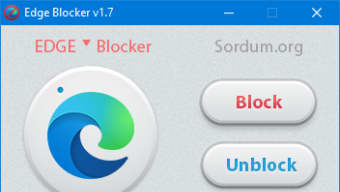
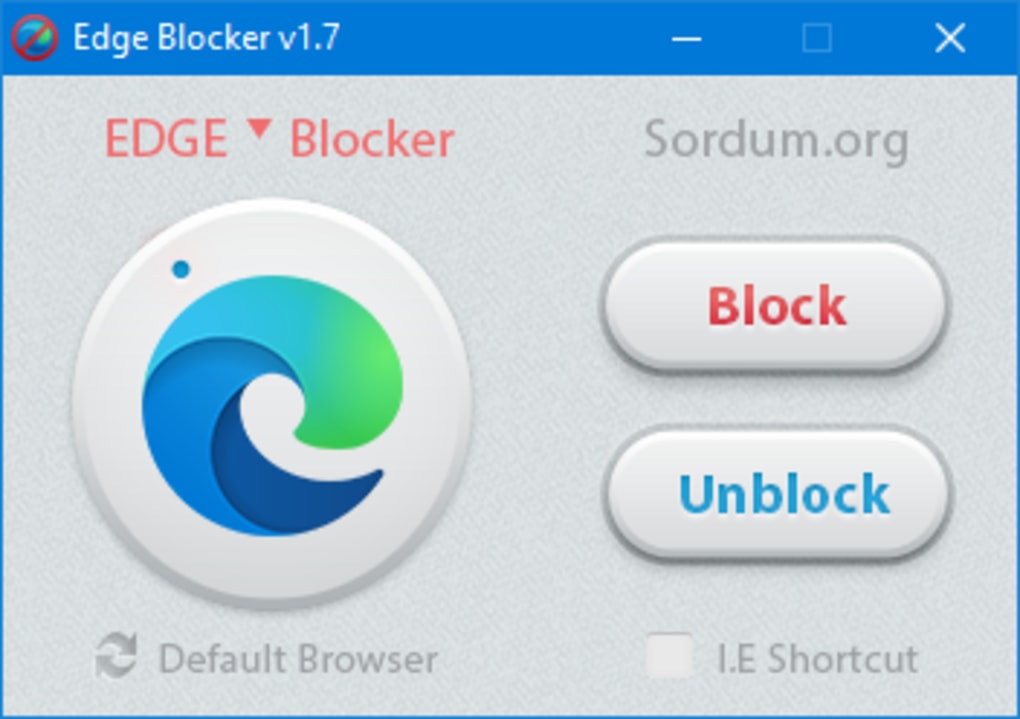
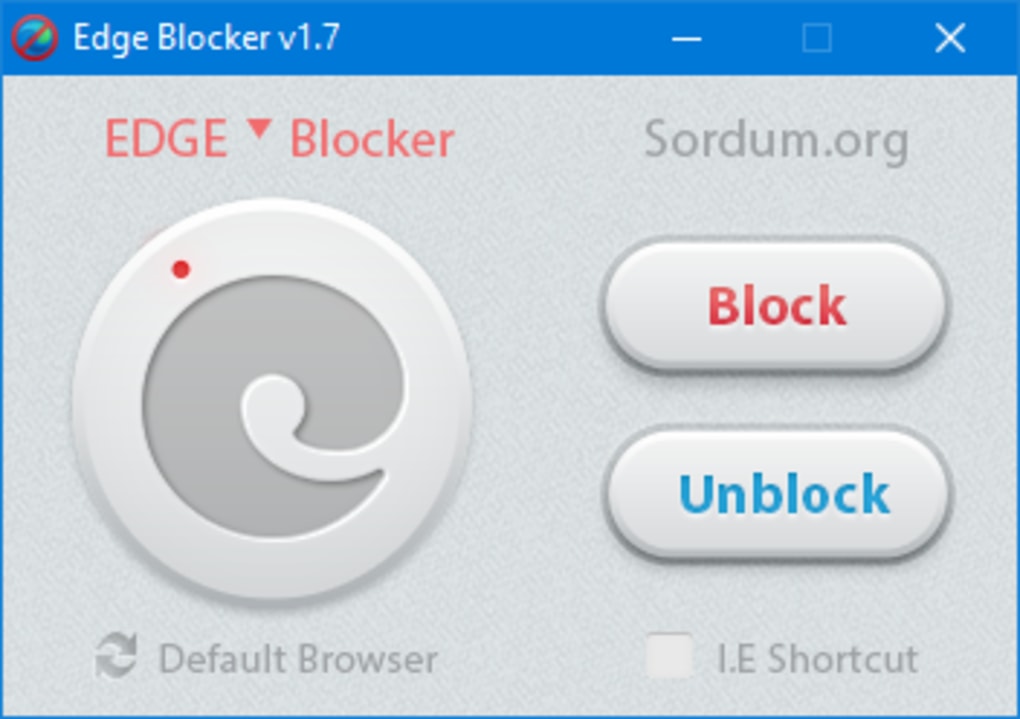
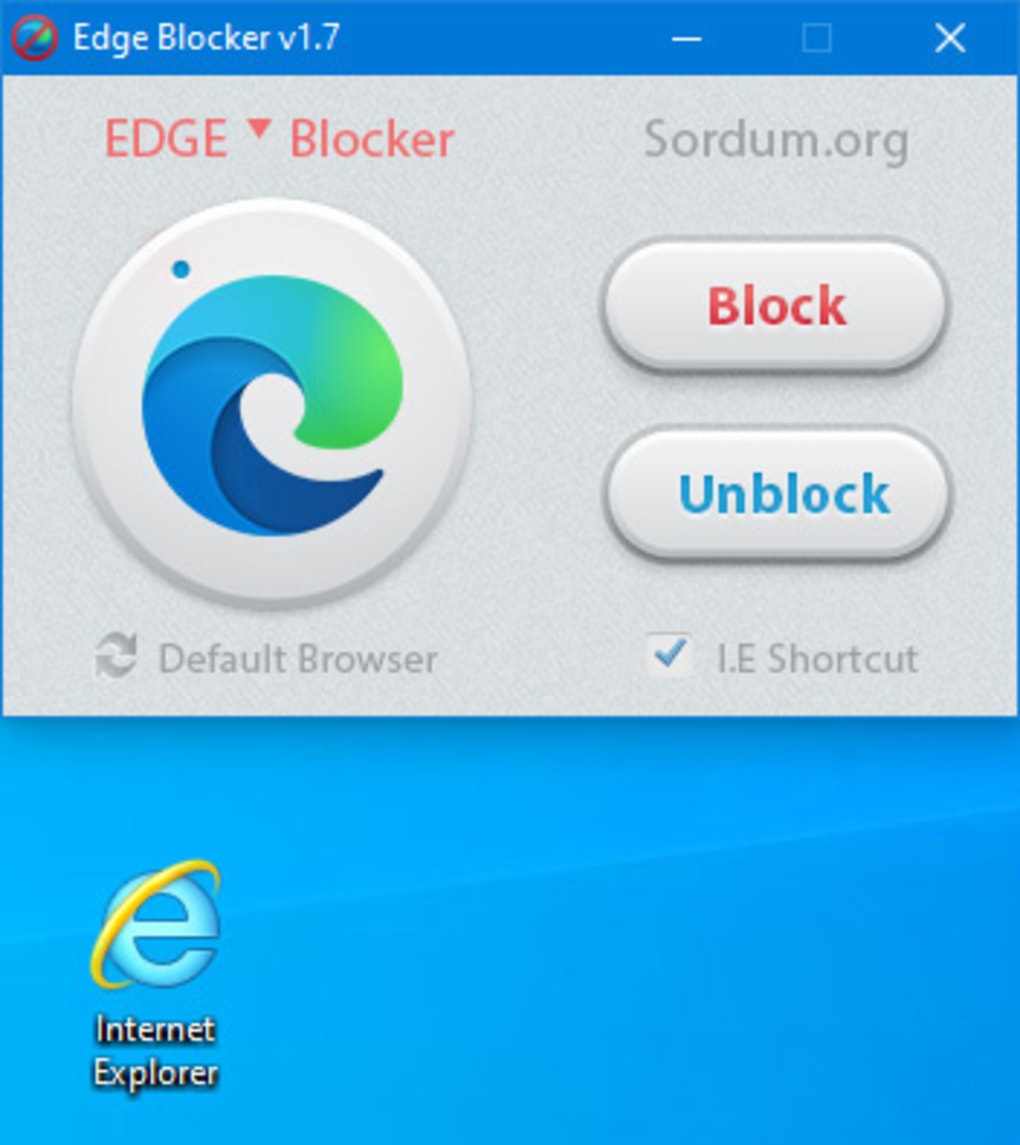
After launching, the interface presents a single toggle labeled “Block Microsoft Edge”. Turning the toggle on activates the blocking service immediately – any attempt to open Edge will be silently cancelled. To temporarily allow Edge (for example, for a quick test), flip the toggle off, perform the necessary action, then re‑enable it. The program places an icon in the system tray, giving you quick access to the on/off switch and an “Exit” command. Because the application does not require installation, you can move the executable to any location without breaking functionality.
System Requirements
Supported OS: Windows 10 (64‑bit and 32‑bit) and Windows 11. The software leverages native Windows APIs, so it runs smoothly on any recent build without additional dependencies. Minimum hardware requirements are modest: a CPU capable of running Windows 10, at least 512 MB of RAM, and 10 MB of free disk space for the program files.
Edge Blocker has been tested on both Home and Pro editions of Windows, and it works equally well in corporate environments where Group Policy may restrict software installations. Since the utility does not modify the registry, it is also safe to use on machines with strict security policies.
Pros, Cons & Frequently Asked Questions
Pros
- Free and completely functional without hidden costs.
- Extremely lightweight – negligible impact on system performance.
- Portable version allows deployment without installation.
- Simple one‑click interface suitable for beginners.
- No registry edits, reducing the chance of system instability.
Cons
- Only available in English, limiting non‑English speaking users.
- Lacks advanced scheduling or whitelisting features.
- Does not provide logs or detailed reporting of blocked attempts.
- Currently supports only Windows; no macOS, Android, or iOS versions.
FAQ
Will Edge Blocker remove Microsoft Edge from my PC?
No. Edge Blocker does not uninstall Edge; it simply intercepts launch commands and prevents the browser from opening. You can re‑enable it at any time.
Do I need administrator rights to run Edge Blocker?
For basic blocking, admin rights are not required. However, enabling “Launch at startup” may prompt for elevation to create a shortcut in the startup folder.
Can Edge Blocker affect other browsers?
The tool targets only the Microsoft Edge executable (msedge.exe). Other browsers such as Chrome, Firefox, or Opera operate independently and are unaffected.
Is the software safe from malware?
Edge Blocker is distributed by Sordum.org, a reputable source for Windows utilities. The executable is digitally signed and contains no known malware. Always download from the official site or trusted mirrors.
How do I stop Edge Blocker if I need to use Edge temporarily?
Open the system‑tray icon, toggle the “Block Microsoft Edge” switch off, launch Edge as needed, then toggle the switch back on when you’re finished.
Conclusion & Call to Action
Edge Blocker fills a niche that many Windows users overlook: the ability to silence Microsoft Edge without uninstalling it or resorting to complex group policies. Its free price tag, tiny memory footprint, and portable nature make it an attractive option for both personal and professional environments. While it lacks advanced logging and multilingual support, the core functionality—preventing Edge from launching—works reliably on Windows 10 and Windows 11. If you’ve ever been annoyed by Edge opening unexpectedly, or if you’re an IT administrator looking for a lightweight way to enforce a preferred‑browser policy, Edge Blocker is worth a try. Download the latest version, enable the simple toggle, and enjoy a cleaner browsing experience without the overhead of a full‑blown endpoint management solution.
Ready to regain control over your browser choices? Download Edge Blocker now and experience a secure, hassle‑free way to block Microsoft Edge on your Windows PC.
Pros: Free, lightweight, portable, easy to use.
Cons: English‑only, no detailed logs, Windows‑only.
Guides & Tutorials
How to install Edge Blocker
- Click the Download button above.
- Once redirected, accept the terms and click Install.
- Wait for the Edge Blocker download to finish on your device.
How to use Edge Blocker
This software is primarily used for its core features described above. Open the app after installation to explore its capabilities.
User Reviews
No reviews yet. Be the first to share your experience.
You may also like
more
Llama 2
Free-to-use large language model As the new addition to Meta’s arsenal of langua...

NotebookLM
Revolutionizing the note-taking and idea-generation process NotebookLM is an exp...

Github co pilot
AI-inspired software development and coding platform GitHub Copilot is a browser...

Google Gemma
Google’s lightweight AI models Introducing Google Gemma , a family of cutting-ed...

AI Image Enlarger
A free app for Windows, by ai-image-larger. AI Image Enlarger is a free software...

DALL E
AI-driven text-to-image transformation engine DALL·E is a free graphic and desig...